
Guide - May 2, 2026
How to Identify a Place From a Screenshot
Unknown travel screenshots are not dead ends. With the right clues and a simple system, they can become real places in your future trip library.
Unknown travel screenshots are not dead ends. With the right clues and a simple system, they can become real places in your future trip library.
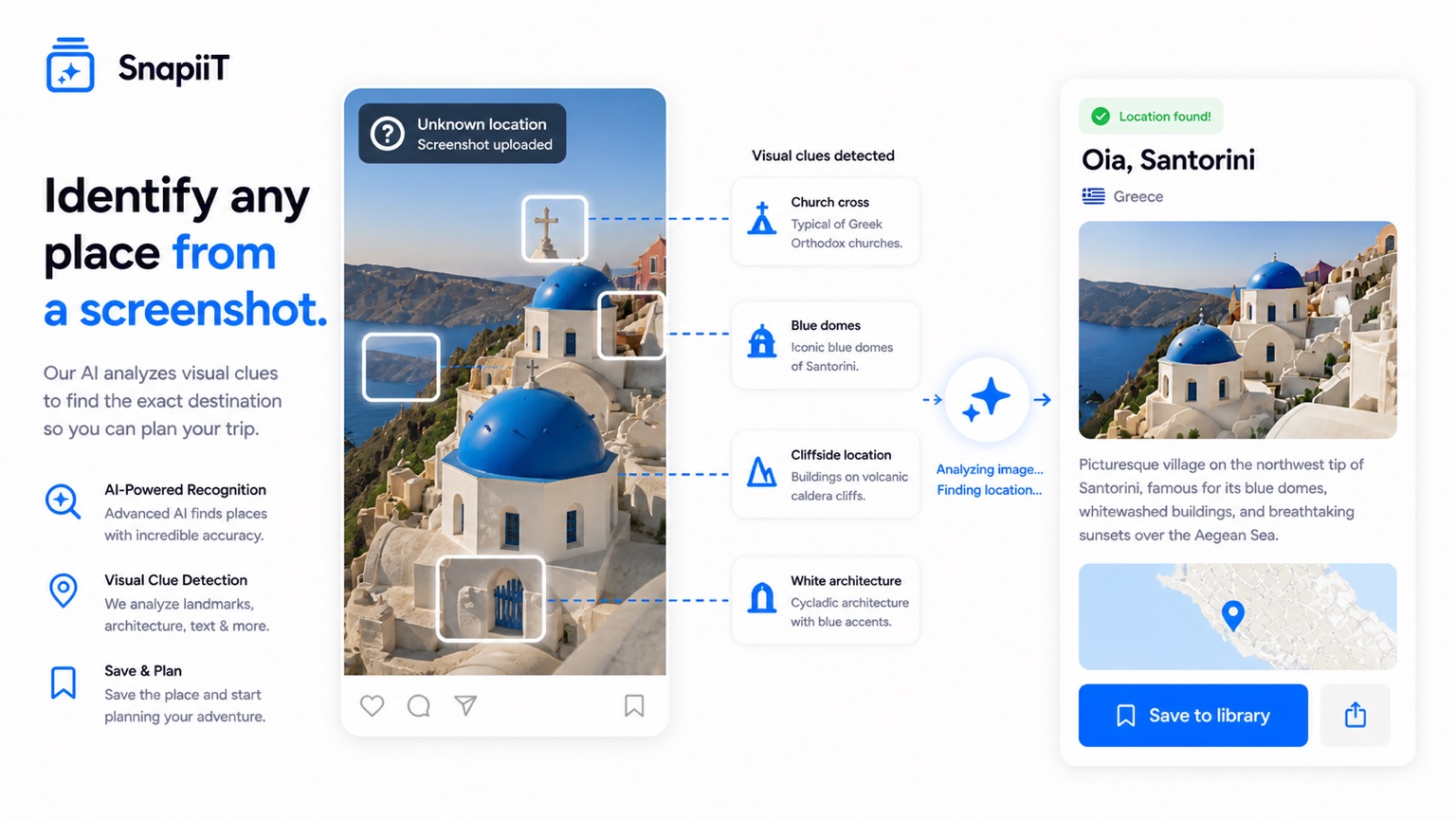
Before you analyze the image, capture anything you still remember about where it came from. Was it from a friend, a hotel article, a restaurant list, a TikTok, a reel, or a map screenshot? Even a tiny clue can help you validate the result later.
If the screenshot includes caption text, a username, a partial map label, a cafe name, or visible language, keep that context with the image. SnapiiT lets you add an optional clue before analysis, which is useful when the photo itself is beautiful but vague.
Travel images often reveal more than they seem to. A balcony style, coastal shape, street sign, mountain profile, tram line, tile pattern, or nearby landmark can narrow the search. Famous places are easier, but smaller places can still be identifiable when several clues line up.
You can manually reverse-search images, zoom into signs, and compare maps, but that gets slow quickly. SnapiiT is built for travel screenshots specifically: upload the image, add a clue if you have one, and let the app return a likely place with context you can act on.
The best result is not just a name. It is a destination record: what the place is, why it might be worth saving, and what you should remember when you come back to it later.
Once you identify the place, do not send it back into the camera roll. Save it into a folder such as "Japan someday," "Summer Europe," "Weekend trips," or "Restaurants to plan around." Add one note about why you cared in the first place.
That note matters. Months later, "blue door in Lisbon" is much less useful than "Lisbon viewpoint near sunset, good for first evening." The difference is whether the screenshot can become a trip plan.
Try the dedicated Find a Location From a Screenshot page, or learn how identified places become a route in Screenshot to Itinerary.